Web Form Calculation Formula
Sometimes it can be advantageous to embed a formula into a Web Form rather than include it in the database. Such circumstances may be when the use case for the formula is so specific it doesn’t warrant putting into the database, or it is a variance of two columns that are different scenarios set by selecting user variables. In the database this would lead to numerous variance metrics. Or it could be you simply don’t have the privileges to put new members into the database.
There is quite comprehensive documentation from Oracle. This is the main landing page to the Oracle form formula documentation:
This page is specifically the documentation on the row and column references:
Row, Column, or Cell Reference Arguments
Below is my anecdotal experience of using Web Form Calculations.
Adding Formula
Adding a formula is simply a case of right click in the web form editor “Layout” tab and “Add Formula Column”
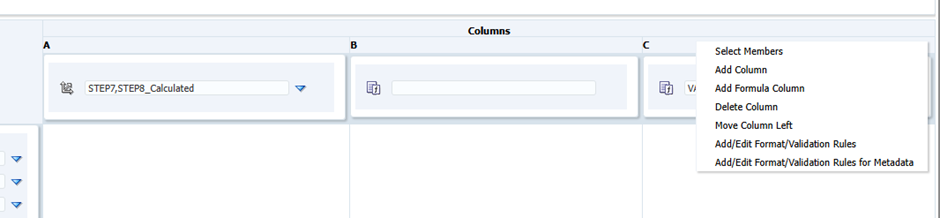
The formula can be entered directly into the text box
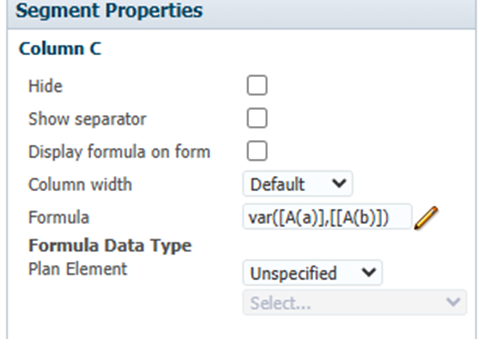
Or the function selector can be used
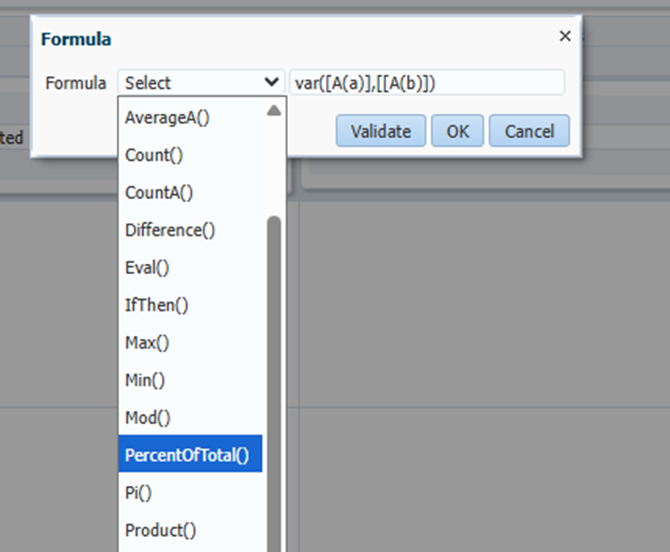
Although you still have to fill in the text box…..
Checking Formula
Test in Web View and Smart view. I came across a situation where the formula below caused #error in the web interface. It had a typo double square bracket [[
var([A(a)],[[A(b)])
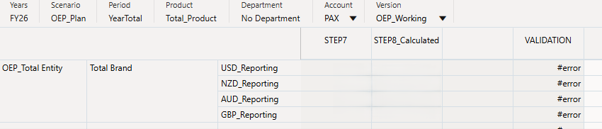
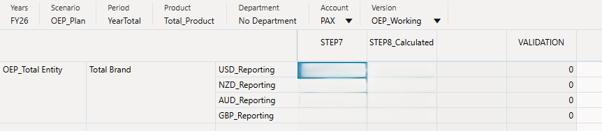
But the same form in Smart View was fine.
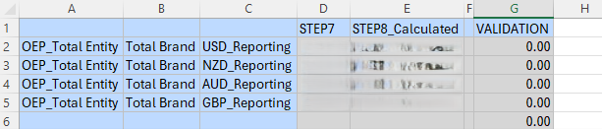
By removing a spurious bracket it cleared the error
Variances
In this example I need to stop the division by zero in “Act vs Plan %” showing #error
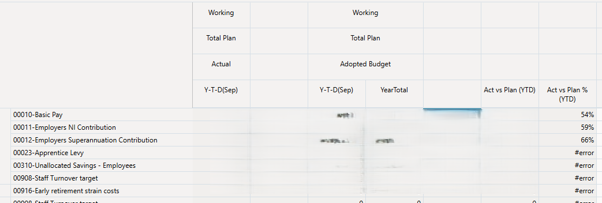
The variance column “Act vs Plan (YTD)” – Formula: Var([A],[C(a)])
The percent variance “Act vs Plan % (YTD)” – Formula: [A]/[C(a)] is dividing by zero and results in #error
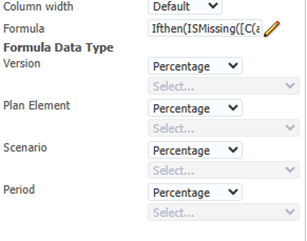
So to check for a zero denominator – Formula: Ifthen(ISMissing([C(a)]),0, Ifthen(ISMissing([A]),0, VarPer([A],[ C(a)])))
This clears the #errors
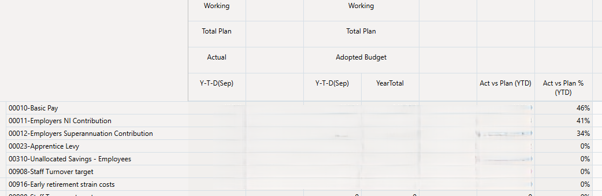
Note the change of Formula Data Type in the form segment specification to get the percentage symbol
Lines
To get underlines in the Totals, use the show separator in the Segment properties
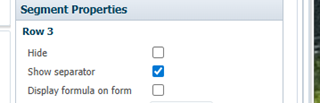

n.b. line doesn’t show in Smart View.
SUM sub rows or columns
To aggregate rows (or columns) where a function like ILvl0Descendants is used or a list of members is selected
Formula: Sum(Row[2]) or just [2]
It implies to sum up all the descendants
SUM alternate Columns
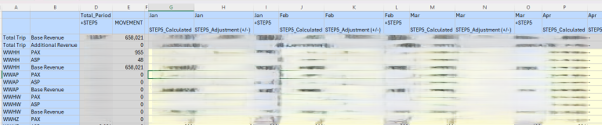
In this example, I wanted to sum every other column i.e. the Adjustment columns.
In Column “MOVEMENT” – Formula: [C(b,d,f,h,j,l,n,p,r,t,v,x)]
Explicit Cells
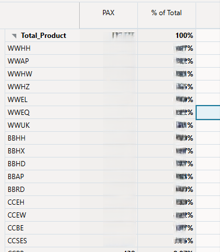
For a Percent of Total, divide a column by a common denominator, in this example it is the value at the top of the column Formula: [A(a)]/[1(1),A(a)]
Hiding Calculations on Cells
In this form I wanted to see the average of Channel 1 divided by S&A PAX.
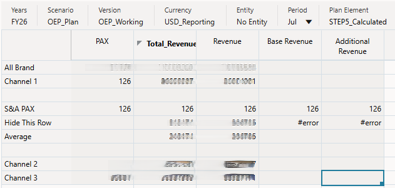
S&A PAX to get the same value in the whole row Formula: [A(a),2]
“Hide this row” is an interim calculation to populate a blank in the PAX column. This was done by copying the value from a blank formula row 3
Formula: Ifthen([2]=[4],EVAL([3]),EVAL(Ifthen(isMissing([2]),EVAL([3]),EVAL([2]/[4]) ) ) )
The “Average” completes the sequence by hiding the #error
Formula: Ifthen(isNN([5]),EVAL([3]),EVAL([2]/[4]) )