Housekeeping in your application and how to list all your artefacts.
I was going to do some housekeeping and clear out a load of unused forms, 328 of them to be precise. The first job was to identify which forms are in use, I used three approaches:
1. Get a full list for forms and folders
2. From the audit log, export data changes for 180 days.
3. Get a list of all Web Forms on task lists (not using Task Manager here yet).
4. Exclude any forms with the OWP or OFS prefix.
List of (All) Artefacts
First job was to export all the artefacts, I excluded the data, and then download the Snapshot file and unzip it.
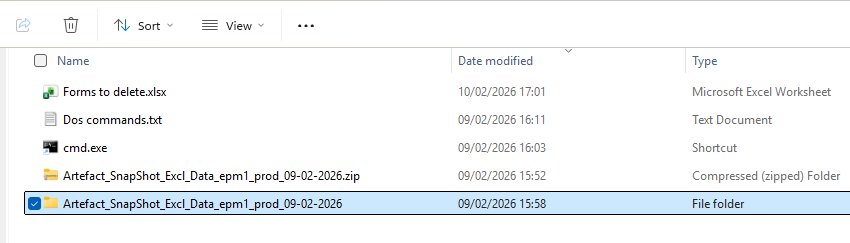
As my focus was to collect a list of all the data forms, which are the individual xml files in the folders somewhere within the “Artefact_SnapShot_Excl_Data_epm1_prod_09-02-2026” folder.
I created the cmd.exe shortcut to run a DOS command. As it was a rather long path I did prompt first.
PROMPT C:
DIR /s/b/a:-d >dir.txt
The CMD.exe shortcut properties were changed to same me navigating to a subfolder, Start in: C:\Windows\System32\cmd.exe /k CD C:\Projects\0_Encyclis\Housekeeping\Artefact_SnapShot_Excl_Data_epm1_prod_09-02-2026\HP-CovPlan\resource\Cube
The DIR produces a file like this
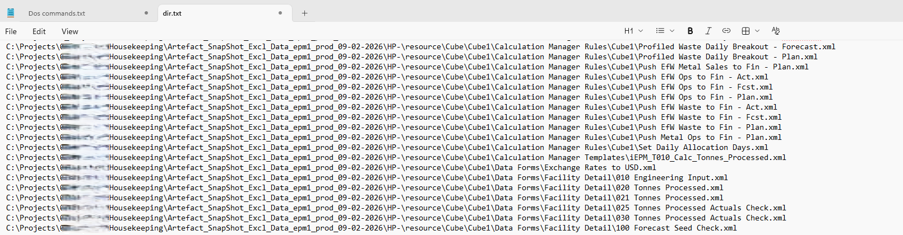
You could use this to get a listing of all artefacts in the application. Copy and paste into Excel, auto filter excluding “Data Forms”
Highlight rows ctrl- to delete
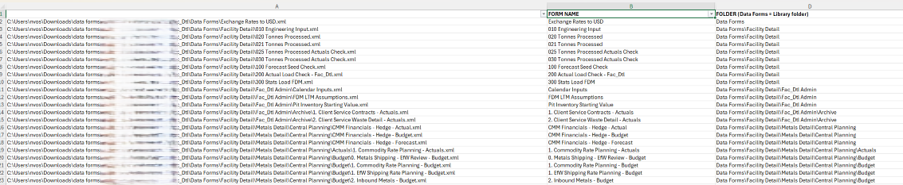
I added a couple of columns for the name and folder. Conveniently the file name of the form is prefixed with OFS or OWP for the prebuild forms.
Formula to extract form name
=MID(A2,LEN(TEXTBEFORE(A2, “\”, -1))+2,LEN(A2)-LEN(TEXTBEFORE(A2, “\”, -1))-5)
Formula to extract Folder name
=MID(TEXTAFTER(A2,”\”,9),1,LEN(TEXTAFTER(A2,”\”,9))-LEN(TEXTAFTER(A2,”\”,-1))-1)
Forms to Keep
Identify the forms in use from the Audit Log and Task List. With the audit log, I just exported 180 days of data changes to Excel and removed duplicates on the Source (form name)
To get all the web forms references in a task list I created a CMD.EXE sort cut in the “\resource\Global Artifacts\Task Lists” folder
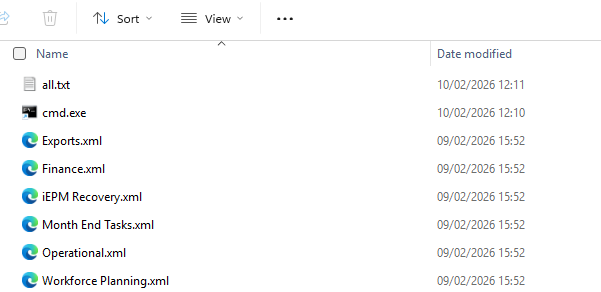
From the command window TYPE *.xml > all.txt
Copy and Paste all.txt into Excel and filter on “<dataForm>”. Clear the list of the MXL tags, append to the Audit list and remove duplicates.
I then created a column to lookup names to keep along with the predefined forms.
=IF(LEFT(B1,3)=”OWP”,B1,IF(LEFT(B1,3)=”OFS”,B1,VLOOKUP(B1,’forms to keep’!A:A,1,FALSE)))
Deleting Forms
Then I explored ways to delete them using a script and couldn’t see any way of automating the removal process, so I just did it through the user interface folder by folder using my list created form the steps above.