Loading Multiple Accounts Using Logic Groups
In this blog, I have a file that I needed to parse twice in order to populate six account members by filtering on different subsets of the data. One approach could be to create two data load rules and have scripts to run them, basically reading the file twice. Alternatively, by using “logic groups” the file is loaded once into the data manager tables and then replicated into cohorts of data that are the logic groups. The logic groups are processed with a “Group By” and data mapping.
Data manager logic group is not a very meaningful name, it would be better described as table duplication, what it does is create a copy of the TDATASEG table and append to records in the original table.
Use Case
The file I have has three columns to populate the account dimension, the first pass takes all the data, the logic group pass to take the data filtered on columns ATTR1 & ATTR2.
The three data columns for three accounts are:
- AC_IFRS17_BEL
- AC_IFRS17_PolicyCountExp
- AC_IFRS17_OSP
However, I want to populate three more accounts (as above with _LTM suffix) using a subset of the same data table so either I can load the file again into another LOCATION or use a logic group to create another copy of the data.
Account Structure to be populated:

1. Application Definition
First thing to create is the Application definition. The ATTR* fields must be “LOOKUP” fields to be visible to the Logic Groups.
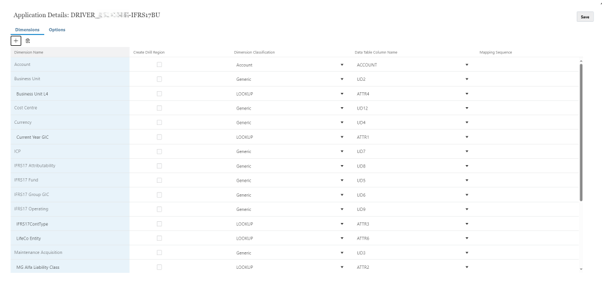
Once I added LOOKUP Fields I kept getting this error when trying to refresh Meta Data

However, it didn’t seem to be a problem as the fields turned up in “Import Format”
2. Import Format
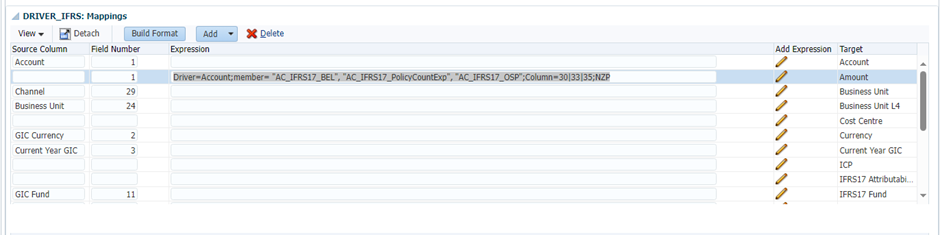
To populate the first three accounts I have this Import format that is set to “Multi Column – Numeric Data” with a comma file delimiter:
Driver=Account;member= “AC_IFRS17_BEL”, “AC_IFRS17_PolicyCountExp”, “AC_IFRS17_OSP”;Column=30|33|35;NZP
3. Create Logic Group
Setting up the Logic Group, for each item within the Logic Group you get another copy of the table created from the source data load. Selecting “Include Calc” will use a previous copy “logic group” of the table as a staging process to the next table. It is a more optimal way if you are going to cascade subsets of the data where results are dependent on the previous Item. In my case this wasn’t required.
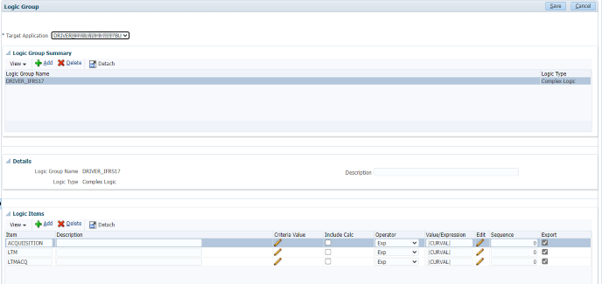
In the expression I used |CURVAL| just to retain the value in the source amount field.
The Export field tick box will include it into Workbench for exporting to the downstream application.
Once a logic group is created it is useful to know what cohort of records is created by the Logic Group, this may be needed for the field mappings later, and in this use case it was required. This is done by making some identifier in one of the fields, either one of the UD1-UDx fields, the ATTRx of the LOOKUP fields.
In the below example, in the field ATTR2 it will have the value “LTMACQ”, all other dimensions will be grouped by (summed) on their unique combinations. Therefore I can identify the records created by the Logic Group because ATTR2 = ‘LTMACQ’. Where the group by is *, then the original values in ATTR1 will be retained and will add to the combinations for the “Group By”.
In this more complex Logic group the ”*” will leave the original values in the dimension, so here in ATTR1 will still be the value “Yes”
It is also possible to prefix the current value in a Group By using expressions like “LTM_*”
The only drawback is that the logic group can only do positive inclusions, i.e. you don’t have the option for “Not In”. Handle that in the Mapping to set records field VALID_FLAG = ‘I’, and optionally the value field to “IGNORE”, this is cosmetic.

4. Add to Location
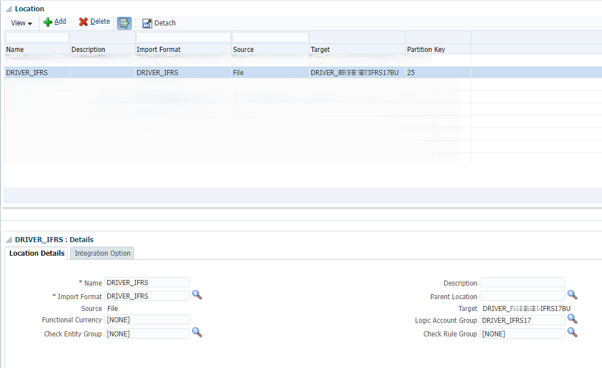
Once the Logic Group is set up it is attached to the Location it has to apply to.
5. SQL Data Mapping Process
I generally use SQL for mapping and put it onto the ACCOUNT dimension for ease of remembering where it is. The reasons are three fold
- For each of the mapping dimensions that are populated, Data Manager will parse through the TDATASEG, so doing all mappings in one go optimises the process
- I have all the power of Oracle SQL at my disposal
- I can set the VALID_FLAG
n.b. there is no error checking in the editor so it can be tricky to debug.
So in the Data Load Mapping I have included the SQL below.
The key is to determine the cohort of records being processed, this is done by testing ATTR2 IN(‘LTMACQ’, ‘LTM’) as below
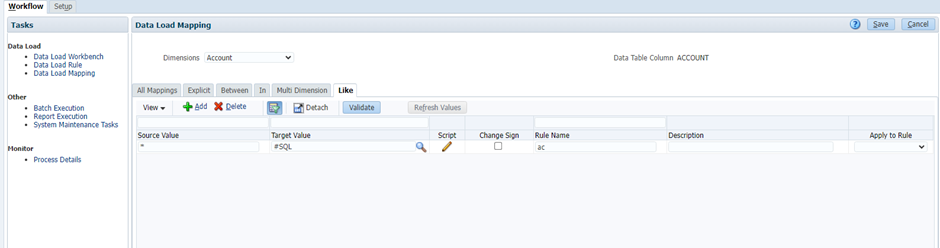
The key is to determine the cohort of records being processed, this is done by testing ATTR2 IN(‘LTMACQ’, ‘LTM’) as below
CASE WHEN ATTR2 IN('LTMACQ', 'LTM') THEN THEN – values set in the Logic Group
  CASE WHEN ATTR6 IN('RLL','RAL') OR ATTR5 IN ('EUR','IRL') THEN
    'IGNORE' – populate with this so it can be seen in workbench
  WHEN ACCOUNT = 'AC_IFRS17_PolicyCountExp' THEN
    'AC_IFRS17_PolicyCountExp_LTM'
  WHEN ACCOUNT = 'AC_IFRS17_BEL' THEN
    'AC_IFRS17_BEL_LTM'
  WHEN ACCOUNT = 'AC_IFRS17_OSP' THEN
    'AC_IFRS17_OSP_LTM'
  END
ELSE
  ACCOUNT
END,
Below is the full mapping script for reference:
-- Comment up the dimension fields for easy reference
-- UD1 Version
-- UD2 Business Unit
-- UD3 Maintenance Acquisition
-- UD4 Currency
-- UD5 IFRS17 Fund
-- UD6 IFRS17 Group GIC
-- UD7 ICP
-- UD8 IFRS17 Attributability
-- UD9 IFRS17 Operating
-- UD10 PCM_Balance
-- UD11 PCM_Rule
-- UD12 Cost Centre
-- ACCOUNT Account


-- The SQL that Data Manager embeds, hidden internally is...
-- UPDATE TDATASEG
-- SET ACCOUNTX=

--In the logic group ATTR2 has it’s value set for the second cohort of data to either 'LTMACQ', 'LTM'
-- This is the key to identify when the change the member in the Account field or leave it as is
CASE WHEN ATTR2 IN('LTMACQ', 'LTM') THEN THEN – values set in the Logic Group
  CASE WHEN ATTR6 IN('RLL','RAL') OR ATTR5 IN ('EUR','IRL') THEN
    'IGNORE' – populate with this so it can be seen in workbench
  WHEN ACCOUNT = 'AC_IFRS17_PolicyCountExp' THEN
    'AC_IFRS17_PolicyCountExp_LTM'
  WHEN ACCOUNT = 'AC_IFRS17_BEL' THEN
    'AC_IFRS17_BEL_LTM'
  WHEN ACCOUNT = 'AC_IFRS17_OSP' THEN
    'AC_IFRS17_OSP_LTM'
  END
ELSE
  ACCOUNT
END,


UD1X = 'VE_WRKG_Baseline',

UD3X =
CASE WHEN ATTR1 = 'ACQ' OR ATTR2 = 'LTMACQ' THEN – values set in the Logic Group
 'MA_Acquisition_IFRS17'
ELSE
 'MA_Maintenance_IFRS17'
END,

UD4X = 'GBP_Reporting',

UD5X =
CASE WHEN TRIM(UD5) IS NULL THEN
  'No IFRS17 Fund'
ELSE
  UD5
END,

UD6X =
CASE WHEN UD6 = 'Group Schemes' THEN
  'No IFRS17 Group GIC'
ELSE
  UD6
END,

UD7X = 'No Service Code',
UD8X = 'No IFRS17 Attributability',
UD9X = 'No Operating',
UD10X = 'PCM_Input',
UD11X = 'PCM_NoRule',
UD12X = 'No Cost Centre',

-- IGNORE RECORDS FROM LOAD

VALID_FLAG =
CASE WHEN ATTR2 IN('LTMACQ', 'LTM')AND (ATTR6 IN('RLL','RAL') OR ATTR5 IN ('EUR','IRL')) THEN
  'I'
ELSE
  'Y'
END
In the ATTR6 it is set to “IGNORE”, this is just a label for information, the “VALID_FLAG” will set which records are excluded from the data load.
6. Create Data Load Rule & Execute
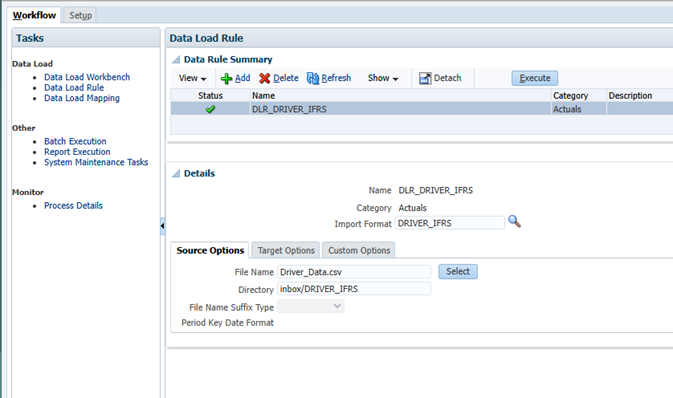
Final bit is to create a data load rule and run it.
This data load rule will now populate the six account members.