Access to Multiple Environments in Excel Smart View
A super quick post about a tip I got a few years ago on an easy way to manage access to multiple environments in Excel Smart View. The reason for going to post is that it surprises me how often that I come across people that have not seen this, so here it is.
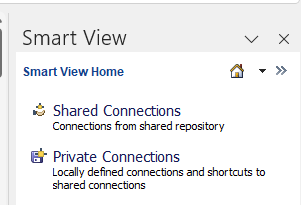
How it looks in the Smart View Panel is that the links are available in Shared Connections
Here are the links I have defined in the list below in a XML file.
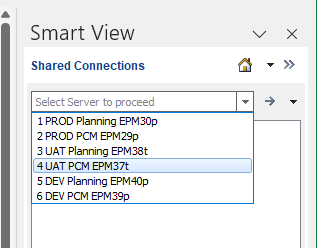
With this I can quickly switch between environments without any palaver, and maintain them in a text editor, very handy if you’re an admin in a large organisation.
I prefix with a number for the sort order.
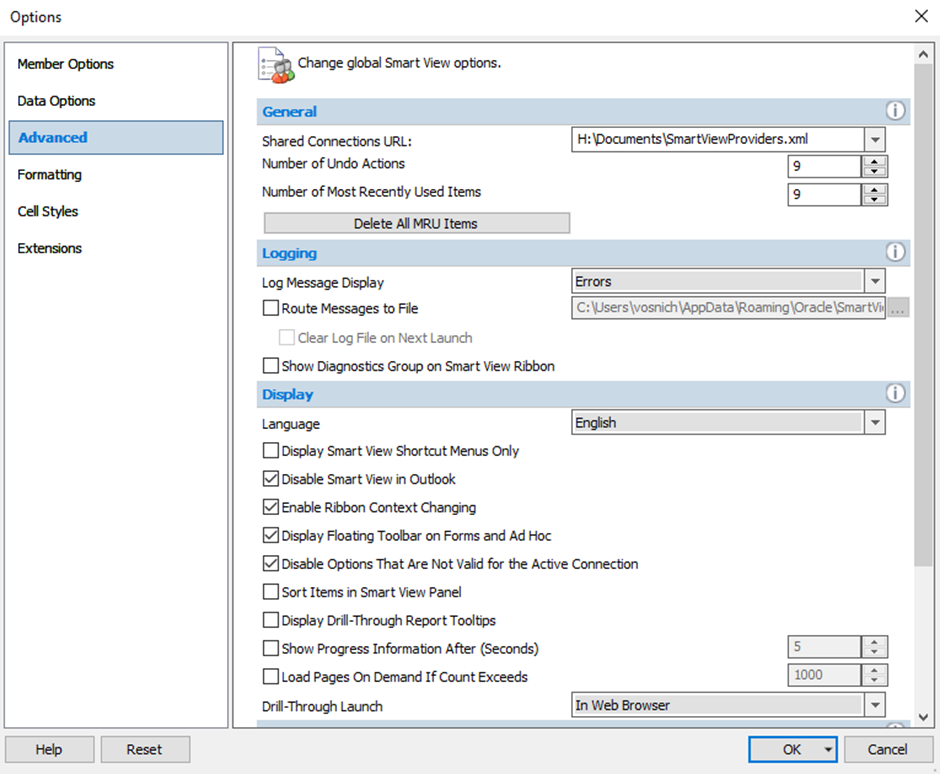
It’s easy to set up all you need to do is create an XML file with your URL links in, doesn’t really matter where you save it, in my environment it is here:
H:\Documents\SmartViewProviders.xml
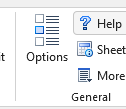
Then add the path in the Smart View Options
I actually keep separate files for different clients, to swap them over Disconnect All
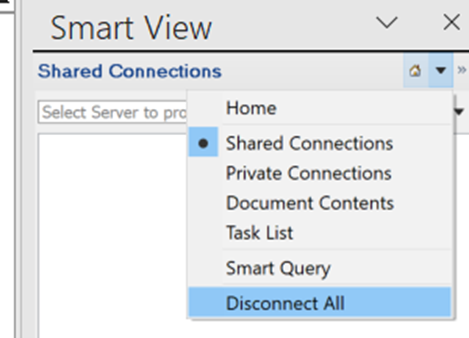
Select the one I need and then go back into shared connections.
Clear MRU
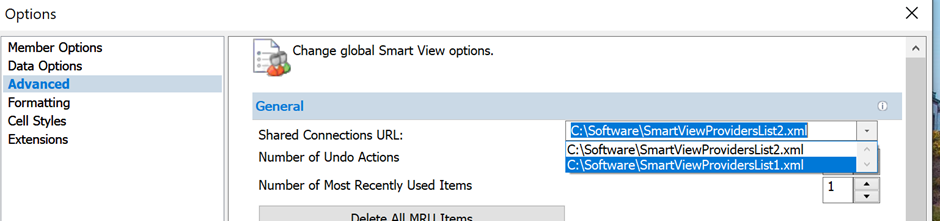
If you want to tidy up the list, the “Delete All MRU Items” button doesn’t work for me so to clear it, delete the file:
C:\Users\username\AppData\Roaming\Oracle\SmartView\properties.xml
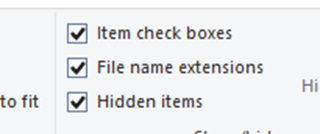
Under this folder it might be hidden, so check the box
SmartViewProviders.xml example
<?xml version="1.0" encoding="UTF-8"?>
<res_GetProvisionedDataSources>
<Product id="HP" name="HP-11.1.2" displayVersion="version">
<Server name="1 PROD Planning EPM30p" context="https://epm30-a999999.epm.em3.oraclecloud.com/HyperionPlanning/SmartView"></Server>
<Server name="2 PROD PCM EPM29p" context="https://epm29- a999999.epm.em3.oraclecloud.com/HyperionPlanning/SmartView"></Server>
<Server name="3 UAT Planning EPM38t" context="https://epm38-test- a999999.epm.uk-london-1.ocs.oraclecloud.com/HyperionPlanning/SmartView"></Server>
<Server name="4 UAT PCM EPM37t" context="https://epm37-TEST- a999999.epm.uk-london-1.ocs.oraclecloud.com/HyperionPlanning/SmartView"></Server>
<Server name="5 DEV Planning EPM40p" context="https://epm40- a999999.epm.em3.oraclecloud.com/HyperionPlanning/SmartView"></Server>
<Server name="6 DEV PCM EPM39p" context="https://epm39- a999999.epm.em3.oraclecloud.com/HyperionPlanning/SmartView"></Server>
</Product>
</res_GetProvisionedDataSources>